Showing posts with label kidblog. Show all posts

Sunday, June 21, 2015

Digital Badges - Part 1 of 3. Setting up Digital Badges.

This post is intended to be the first of three posts about Digital Badges. 
Part 1 is the 'How' Part 2 the 'Why' and Part 3 the 'Outcomes'. I am writing the 'How' before the 'Why' as I am still grappling with an idea - "Do Digital Badges led to extrinsic motivation and fixed mindsets'? (would love anyone's opinion on this)....

Digital Badges are 'Brownie Badges for your Blog'. They could be for any achievement; from completing Triathlons to Learning a musical instrument. Here is my recommended process of how students can earn these badges.

1) Explain the concept of Digital Badges to your students (maybe bring a Girl Guide/Brownie/Scout uniform to show 'old school badges') Have students brainstorm a list of what badges could be awarded for. This list does not have to be definitive. I had 3 criteria for my students;

  1. It has to be an achievement that is accessible to anyone i.e. winning a musical scholarship for 10 year old is accessible to all 10 year olds as any 10 year old could apply. Riding the tallest rollers coaster at Disneyland is an achievement - but not everyone has the opportunity to do this.
  2. It has to be able to be self-managed by students. By this I mean students need to be able to know if they have achieved this, so a 'kindest person in the class award' is not appropriate as it would require others (teacher) to determine. Having 20 'gems' in your writing book can be self managed though, as the teacher indicates these in their feedback and students can count them.
  3. It has to be measurable. 'Being good at cricket' is not measurable. 'Being in a Rep Team for cricket' is.
2) Have student make badges. I used www.openbadges.me as it works with our students iPads and Chromebooks and is pretty easy. You could also use Google Drawing or Paper and Pen (then take a photo). You only want one student making each badge, so have students write their name or cross out ideas as they begin to create their badge.

3) Store badges in a shared location or have students share badges with you. This is where my method splits into 3 methods.. 
Method 1 (quick and easy) is to have all the badges stored in one Google Drive folder that is shared with all students. 
Method 2 (requires some work from the teacher - but may be essential) Is to have all the badges, along with a description of how to achieve them, on a Class Website/Blog.
If you are all about quick and easy jump down to Step 5!
Method 3 (slower, but with more transparency) is to have students share the badges with you, then....

4) Create a Google Form for each badge. See the form example below. The main purpose for having a form is so a teacher can look at the 'Google spreadsheet' that the form automatically creates and quickly see students that have been awarded badges. The Google Form collects students login name, adding extra transparency to the process. Overall, I feel that the form makes students take more responsibility than simply having a folder they can access and download badges from - but really depends on the students as to what method to use!

Forms would then need to be embedded or linked from a central location (your class blog/website) for students to see what badges are available.
Here is a link to a live form to see how they look.

5) Let students Save the badges and upload to their Blog. At any time, students can go to the shared folder or Blog/Website that hosts the 'Badge Forms' or 'Badge Images and descriptions' and save/copybadges. They will then need to upload/paste the Badge Image into a Blog Post or Digital Portfolio.

My expectation is that some reflection needs to be included when students post their badges to their own blog. e.g. "Here is my Eco-Warrior badge for being part of the Eco-Warrior team in 2015. I am proud to be in this team as a lot of students wanted to be in it. I am also proud because I think the work we do is really important, like composting and recycling".

Tuesday, April 7, 2015

KidBlog Version 4 - Review

OK, so we are potentially in the minority of schools in that despite being a GAFE school who live within the Google EcoSystem, we do not use Blogger, instead we use a blogging platform called Kid Blog. I would like to complete a direct comparasion between Blogger and KidBlog at a later date, but for now I am going to present my initial impressions of KidBlog's new platform. 

Good:

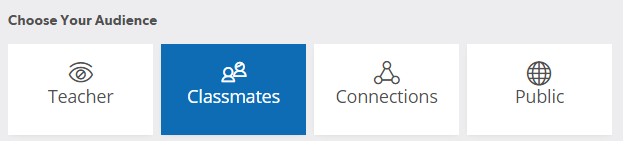
    1. Publishing options. KidBlog is now unique amongst the major Blogging platforms in that every post a user makes gives the blogger up to 4 publishing options, depending on what options the teacher has allowed.

Teacher
Classmates
Connections
Public
What
Need to login to view, then only the teacher, student that has posted and any connected parents can view.
Need to login to view, then students in the class can view.
Need to login to view, then students in all connected classes (i.e. within the school) can view
Does not require login, just need to go to correct website to view.
When (suggested use)
Personal goals - assessment
Most posts from students. Posts from teachers that include student photos etc.
All Teacher notices for parents and students.
Student posts that require a larger audience


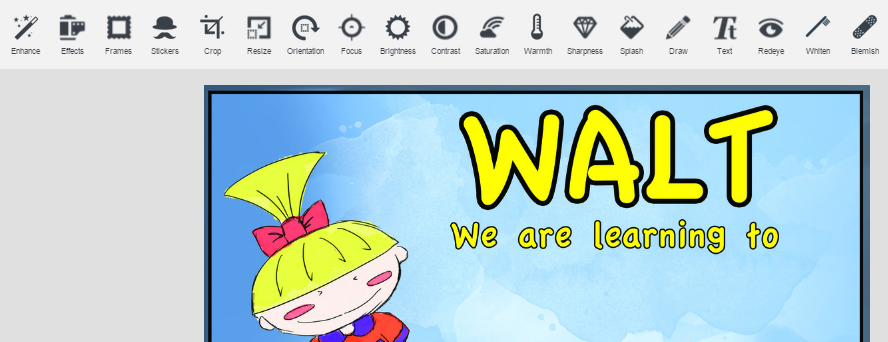
  1. Media Library and image editing. Our students were very engaged at this great update. Images can now be edited within KidBlog, including overlaying stickers and text, adding borders, cropping and enhancing . The below image is in my media library, so I can quickly insert text into the graphic.


  1. Google Drive integration. KidBlog has always been a winner in my mind due to its integration of Google Drive. Past version have been temperamental in allowing instant embedding, but this appears to have been perfected. What does this mean? That any Doc, Presentation, spreadsheet, PDF, image and video can be inserted into a post with 1 click.


  1. Post to multiple blogs. Post Broadcast has long been a popular feature of KidBlog. This great feature is now simply ‘Add to another Class’ meaning any post can be added to any blog the poster is a member of. Teachers can use this to post notices or learning links syndicate or school wide, while students can use this feature to add posts to other blogs they are members of, such as the Enviro Club or Maths Group.


5. Mobile Friendly - for any device. I have always appreciated that Kid Blog has a native IOS App, especially for inserting photos and videos directly into Kid Blog. This App has now been superseded by the KidBlog website been completely mobile friendly for any device. This means users are not restricted to a certain device, allowing me (for example) to take photos with my Android Phone within KidBlog and upload into posts.


Bad/Unsure?:
  1. Historically I have vouched for KidBlog's great support. With the advent of their latest update it would appear that their time is being taken up in ironing out issues with Version 4 and not responding to individual user issues. I would like to think their support will be back to its high level in the near future.


  1. Administrator options. In Version 3 an administrator had a lot of options - from resetting teacher passwords to changing the author of a post. These privileges appear to have been simplified with Version 4.


  1. Ability to only show posts from Admins/Teachers only on the front page. This was a great feature of previous versions of KidBlog, basically allowing only teacher postings to be displayed on the landing page. I liked this as notices, learning links and workshops were always visible to students and parents, whereas now they can be overseen by students postings.


  1. Group posting. There is still no way of groups that work together posting to all their blogs at once - or a teacher to post to another students blog. This creates a ‘double handling’ situation for me, where a collaborative video that multiple students have worked on has to be posted by every student in the group, rather than a ‘copy’ type feature where members can add other students who have contributed (yes, I know about tags and categories but I save these for other classifications - not users). The ability for a teacher to post to a students blog is also still missing - something that would make the portfolio process so much easier, especially in the junior years.


  1. Notifications. Email notifications for teachers and connected parents when posts and comments are not (yet?) available. For the teacher that does not use Kid Blog day in day out, this is problematic, as students may be posting without their knowledge. It also takes away one of the greatest benefits for parents of being alerted to new posts.


Conclusion.

The features KidBlog have included with this update are next level. Some I had never thought of, but immediately made sense, while others I had been hoping for for a long time. The current problems are hopefully teething issues as the new version is still in BETA testing. Ka pai KidBlog :)

Related - Why I like KidBlog

Tuesday, December 2, 2014

Top 5...Reasons I like Kid Blog

UPDATE - KidBlog have a new version of their platform. Check out my review here


  1. Post Broadcast. As a teacher, I can broadcast any blog post to any other class in the school - read that again and think of the possibilities.....cutting down the workload anyone?


  1. Ease of Use. Our 6 year old's use Kid Blog, mainly due to their simple login system where users select their name from a drop down list, then type in their password or click the 'Login with Google'...The Apple App (need to keep the list to 5, so will throw into Ease of Use) is simplistic yet covers everything you need - including shooting video or using the camera from within the App.


  1. Google integration. Login's through Google and 1-click posting of any content from your Google Drive account makes Kid Blog integrate better with Google - perhaps even better than than Google's own Blogger!


  1. Customisable. From students selecting their own themes to teachers selecting how they want to modify comments, Kid Blog have a lot of options!  
  1. End of Year 'Transfer'. I have been reading about the dilemmas some schools are currently having with what to do at the end of the year with students blogs - after all, does a child really want to continue with the same blog they started as a 5 year old into Intermediate - how lame. Yet, what a waste to completely forget about it. With Kid Blog, each year a child's account remains open, you simply add them to additional classes (blogs). They get a clean slate at the start of the year, but (big but) they have a nice drop down menu where they can flick back to other years and reminisce :)


My Wish List (Yes Matt, I really want these things)
- For teachers to be able to post to students blogs (As a teacher) to praise, add a photo etc. This would be tumeke for Junior classrooms completing eportfolios.

- A KidBlog Android App - for my Galaxy Tablet!

- A KidBlog Chrome App, so we can all have the KidBlog icon in our Chrome Dashboards!