Showing posts with label Apps. Show all posts

Saturday, June 4, 2016

Dear App Developer....

I have spent time recently downloading and trialing heaps of new (and old) 'educational Apps' on our family iPad, both for my 5 year old and classes I teach.

I feel like I keep experiencing the same problems, so here is my 5 pet-hates for any Educational App.


  1. Don't have large 'Sign-Out' buttons that children can access on subscription based Apps.
  2. Don't have links to social media (or have the option to turn this off).
  3. Don't have 'games' where a child can hit every single answer on the screen until the correct one lights up. Tapping an incorrect answer should result in feedback that stops the child making the same mistake nest time.
  4. Have less buttons/options. Make it two/three choices per screen.
  5. Don't have small icons that need to be dragged from the sides - I actually need to take the cover off our iPad to access some of these!
Now if only I could delete these Apps from my purchasing history, it is now overrun with Apps that have not made the cut...

Tuesday, June 16, 2015

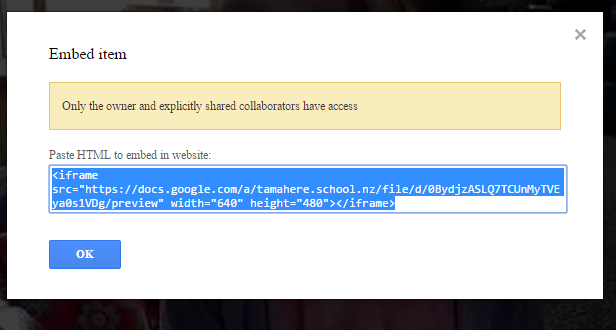
Embed a Google Drive video

Videos are so important in sharing learning. I have found the most effective video sharing tool to be Google Drive as;


- It is really easy to add videos to Drive from any device - including iPads and Chromebooks
- Videos can be shared with others easily (i.e. a video project can be shared with each member of the group)
- No 'related videos' that appear to the side and at the conclusion of your video (like on YouTube)
- Can be embedded just like a YouTube video. 
This last statement does not seem possible at first, so here are my 5 steps to embed a Google Drive video into any website.
  1. Go to Drive and open the video (it will open in a preview mode)
  2. Once the video is viewable - Click the open button (this will open the video in ‘full’ mode).

3) Click the Share button (persons head) and ensure that other people can see your video. By selecting “Anyone with the link can view” only people who have the exact url will be able to view.


4) Click the Menu Bar (3 Dots) you will click on the “Embed Item” option.


5) Copy the embed code (click once and the whole code will be selected, then COPY).


On an iPad you  need to go to drive and click the info icon next to video.
Then click on Get Link - it will copy the URL link.
Then paste this link into a browser (Chrome).
You can then get the embed code the same way.
A little harder, but works well.

Tuesday, June 2, 2015

Making the Internet be the PA you will never have...

IFTTT (If This > Then That) is a tool that creates recipes. A recipe is something that happens as a result of a 'trigger' such as when you Dial 111 from your phone a Text Message is sent to your partner.

The 'digital eco-system' you use will dictate exactly what recipes you can use.
As a Google Apps/Blogger/EverNote/Android user, I have found the following recipes - that have taken seconds to set up - save me the most time.


IFTTT Recipe: Save photos I take at school to a folder in Google Drive. connects android-photos to google-drive 
1. Photos taken in the area of my school (from my phone) get saved to my Google Drive account. If you take a lot of photos this recipe is great as it means you can safely delete any 'school photos' on your phone, knowing they will be accessible in the cloud. I used to tell people (but always forgot myself) to open their Google Drive App and take photos from within the App - this recipe eliminates the need to remember!

 IFTTT Recipe: When a form is submitted, receive a text. (Google Sheet > Tools> Notification Rules > email first). connects gmail to android-sms
2. When a Google Form is submitted, receive a text message. This is a 3 step recipe. When you create a Google Form a Response spreadsheet is automatically created to collect all responses. Within this spreadsheet, go to Tools> Notification Rules and decide the frequency you want to have responses emailed. You then need to look at one of the reminder emails about this event and copy an exact string of unique words into the 'search' box of this recipe. 

I use this with our 'IT Helpdesk' and could imagine it being used for absentees.


IFTTT Recipe: Get a text to remind you of that meeting you always forget (or duty...) connects google-calendar to android-sms 
3. When a specific event is about to happen, get a text reminder. I love Google Calendar SMS reminders, but recently Google announced that they will soon be ceased https://support.google.com/calendar/answer/45351?hl=en
I am finding this recipe works great as it only reminds me of events I tell it to - ones that I add a #DF (Don't Forget to). You could equally set up a recipe that reminds you of all events on your calendar - depending on how fill your calendar is this may be a bad idea!

IFTTT Recipe: Finally Leaving School! connects android-location to android-sms 
4. When you leave the area of your work, send a text message. Stop texting while juggling laptops, books and car keys and get IFTTT to do it for you :)


IFTTT Recipe: Harvest all the links shared in #EdChatNZ into a Google Doc. connects twitter to google-drive
5. IFTTT works a treat with Twitter. You can set up recipes for IFTTT to filter tweets from a specific user, #hashtag or with links. Adding -RT to the end of your search string (after a space) removes any retweets. Here is an example from:username #tag filter:links -RT. A great research method!


Tuesday, April 7, 2015

KidBlog Version 4 - Review

OK, so we are potentially in the minority of schools in that despite being a GAFE school who live within the Google EcoSystem, we do not use Blogger, instead we use a blogging platform called Kid Blog. I would like to complete a direct comparasion between Blogger and KidBlog at a later date, but for now I am going to present my initial impressions of KidBlog's new platform. 

Good:

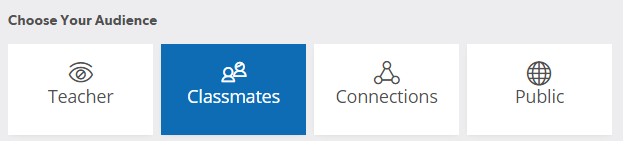
    1. Publishing options. KidBlog is now unique amongst the major Blogging platforms in that every post a user makes gives the blogger up to 4 publishing options, depending on what options the teacher has allowed.

Teacher
Classmates
Connections
Public
What
Need to login to view, then only the teacher, student that has posted and any connected parents can view.
Need to login to view, then students in the class can view.
Need to login to view, then students in all connected classes (i.e. within the school) can view
Does not require login, just need to go to correct website to view.
When (suggested use)
Personal goals - assessment
Most posts from students. Posts from teachers that include student photos etc.
All Teacher notices for parents and students.
Student posts that require a larger audience


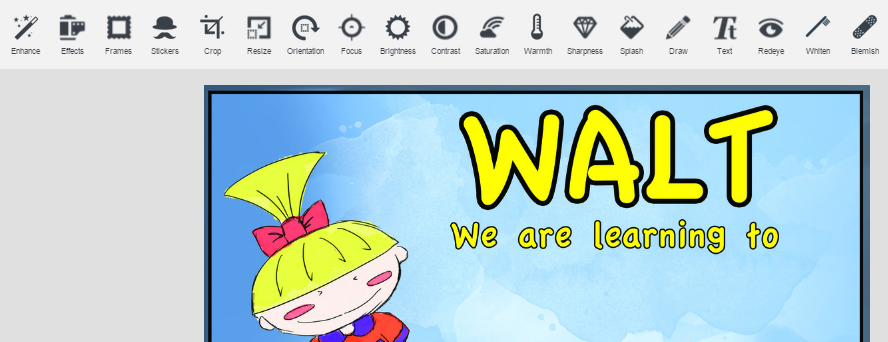
  1. Media Library and image editing. Our students were very engaged at this great update. Images can now be edited within KidBlog, including overlaying stickers and text, adding borders, cropping and enhancing . The below image is in my media library, so I can quickly insert text into the graphic.


  1. Google Drive integration. KidBlog has always been a winner in my mind due to its integration of Google Drive. Past version have been temperamental in allowing instant embedding, but this appears to have been perfected. What does this mean? That any Doc, Presentation, spreadsheet, PDF, image and video can be inserted into a post with 1 click.


  1. Post to multiple blogs. Post Broadcast has long been a popular feature of KidBlog. This great feature is now simply ‘Add to another Class’ meaning any post can be added to any blog the poster is a member of. Teachers can use this to post notices or learning links syndicate or school wide, while students can use this feature to add posts to other blogs they are members of, such as the Enviro Club or Maths Group.


5. Mobile Friendly - for any device. I have always appreciated that Kid Blog has a native IOS App, especially for inserting photos and videos directly into Kid Blog. This App has now been superseded by the KidBlog website been completely mobile friendly for any device. This means users are not restricted to a certain device, allowing me (for example) to take photos with my Android Phone within KidBlog and upload into posts.


Bad/Unsure?:
  1. Historically I have vouched for KidBlog's great support. With the advent of their latest update it would appear that their time is being taken up in ironing out issues with Version 4 and not responding to individual user issues. I would like to think their support will be back to its high level in the near future.


  1. Administrator options. In Version 3 an administrator had a lot of options - from resetting teacher passwords to changing the author of a post. These privileges appear to have been simplified with Version 4.


  1. Ability to only show posts from Admins/Teachers only on the front page. This was a great feature of previous versions of KidBlog, basically allowing only teacher postings to be displayed on the landing page. I liked this as notices, learning links and workshops were always visible to students and parents, whereas now they can be overseen by students postings.


  1. Group posting. There is still no way of groups that work together posting to all their blogs at once - or a teacher to post to another students blog. This creates a ‘double handling’ situation for me, where a collaborative video that multiple students have worked on has to be posted by every student in the group, rather than a ‘copy’ type feature where members can add other students who have contributed (yes, I know about tags and categories but I save these for other classifications - not users). The ability for a teacher to post to a students blog is also still missing - something that would make the portfolio process so much easier, especially in the junior years.


  1. Notifications. Email notifications for teachers and connected parents when posts and comments are not (yet?) available. For the teacher that does not use Kid Blog day in day out, this is problematic, as students may be posting without their knowledge. It also takes away one of the greatest benefits for parents of being alerted to new posts.


Conclusion.

The features KidBlog have included with this update are next level. Some I had never thought of, but immediately made sense, while others I had been hoping for for a long time. The current problems are hopefully teething issues as the new version is still in BETA testing. Ka pai KidBlog :)

Related - Why I like KidBlog

Monday, March 2, 2015

Your device is not a typewriter...Moving on from Publishing

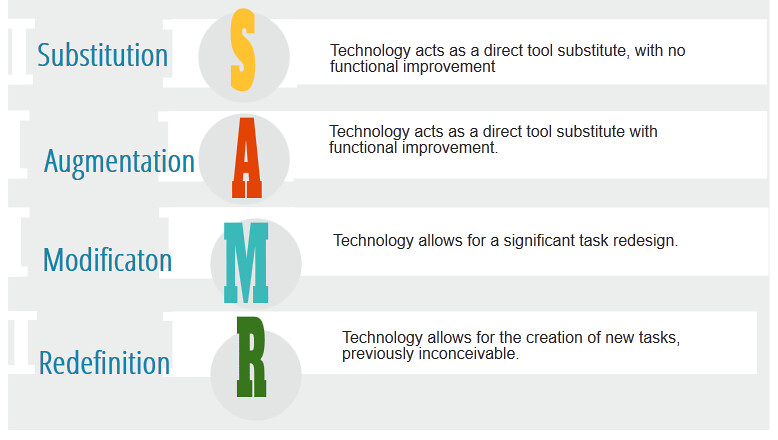
The importance of the SAMR model lies within moving on from the purely 'substitution' level where a book is replaced with a device to higher levels of thinking where devices enhance learning beyond what is otherwise possible.

My first term teaching Year 1 and 2's I had a 'publishing' cycle going on for weeks - and most students never finished their initial story. As we had limited devices, students using them as typewriters resulted in others not being able to use devices to enhance their learning :(

Publishing on a device with students incapable of typing 10+ words a minute (usually 5 - 7 year old's) is a poor use of everyone's time - and obviously at the substitute end of the SAMR model. 

But, I had a vision of their stories being on the wall, in books for their classmates to read in the library and in the school newsletters. I wanted parents and our older buddy class to read our stories on our blog and give us feedback. I wanted Nana's around the world to read and - most importantly - I wanted the kids to know they were authors.

So, how to publish Junior writing to reap rewards without the pain?
  1. Adult (Parent) or older student helpers. Obvious, but often underutilised. Most parents run away from fundraising and working bees, but getting to take home 10 books to type up in the comfort of their home is far more palatable. If you are lucky enough to organise some typists, I recommend them typing up stories in Times New Roman with no formatting, so students have some ownership by changing fonts, adding titles etc. I also once had a group of keen Year 5 - 6s come in one lunch a week to type a few stories each.
  2. Using photos/scan of students work for blogs. If possible, take the time to teach them to take their own photos! At least once a term I used to have my class bring any learning they were proud of to the library photocopier and let them scan away. We would then post our proud learning moments to blogs.
  3. Have students select one or two 'gems' of sentences to publish themselves, which they can then type themselves. This is a great method when you want to surround your walls with effective language. By only selecting one sentence, your walls will be filled with rich language not "I went to the..."
  4. Use voice to text Apps. Honestly, I wish this was the only idea in this list, but the truth is I have never had great success with them, to the point that I would not recommend any I have tried, but if you know one that works - good for you (and please tell me!)
  5. Don't type - record! Is a story made into a multimedia visual extravaganza still a story? I think so. Use Apps like Puppet Pals, Book Creator, Adobe Voice or Sock Puppet. Or record students using whatever video/audio recorders you can find. Creating these text-less medians is great for blogs - but not for your walls. My solution to this? QR codes and with book/movie covers on the wall.
Yes, to collaborate, question, discuss, critique and evaluate content, the content must first be made available. Allowing the time to be spend at these higher level activities and not the typing is the message.

Tuesday, December 16, 2014

Top 5...Ways to shorten an Apps Wishlist


One of the exciting/daunting tasks of rolling out our BYOD programme was giving parents a list of Apps to download for their students iPads. When googling various schools lists, I got a shock that some lists came in over $100 and looked like they would leave little room on a 16GB ipad for media content.

Our aim in keeping our list short was wanting students and teachers to maximise the full potential of a few Apps rather than skim the surface of 30 odd Apps.

Enough people with more knowledge than me have shared lists of 'the best Apps for schools'. Here is my list of how to shorten these 'wishlist' of Apps.

1) Workflow. Workflow with any device is crucial. I was once at a school where a student proudly told me about a video they created. When I asked to see it, they said the video was on iPad #7. This is a direct response to not thinking through the workflow of Apps. 

All content created on an iPad should be able to be shared - with or without the original iPad it was created on. The answer to ensuring good workflow is ensuring your Apps work with;
-Your LMS/blogging platform App 
Web Storage App. For us, this was Google Drive.  Google Drive is our go to App to save photos and videos.

 I am surprised at how many Apps do not produce embed code to add to blogs or upload options other than taking a screenshot.

2) Integration. As a GAFE school, we prioritised some Apps over others due to Google Integration, other Apps were winners as no sign-in and passwords were required. Apps that required users to be 13 and older / use Facebook to sign in had to be put to one side.


3) Avoid Duplicates. No school App list should contain Apps that achieve the same purpose. Obviously, all Apps have slight differences, but think about why you would use the App and if another App achieves this on your list. For us, Explain Everything,iMovie and Book Creator for iPad take the place of alot of Apps!

4) The Substitution Test. I do not believe that all Apps fit nicely into the SAMR model, in fact, give me any iPad App and 10 minutes of quiet thinking time away from kids and I could think of a possible Modification or Redefinition task. 

Where we did use the SAMR model was the Substitution test - are we just substituting something we already successfully do with an App? We have great hands on maths equipment, do we really need fake alternatives when we have the real thing? Likewise, our kids successfully gather around big bits of A2 and mindmap collaboratively. By each sitting in their own space and mindmapping on their own device, is the learning really enhanced?

5) Play, Test and Check! Sometimes, I download an App, play, and fall in love. "It is essential!" I tell myself. 

Then, I test it. I use it as it is designed to in the classroom. I start a task and complete it in its entirety, right down to posting the finished content on a blog. Only when wanting to post an Adobe Voice did I discover I had to have an Adobe account - and that I had to be 13 and above to do this. Likewise, some Apps respond well with limited text or images, bit soon 'run out of screen space' or lag. In my testing phase, I try to involve students, who often tell me things I never thought of - like "the web version of this is way better" or "I just use this other App (I already have) to do the same thing".

My final task is to check about all the things people complain of. Is the keyboard consistently responsive within this App? Can you easily navigate? Does it close off every time you attempt to save a video?


With all this in mind, here is our current 2015 Year 5 -6 iPad App list. Feel free to leave a comment about 'the best App' that we have not included! 


Monday, December 8, 2014

Top 5...Creative Christmas card ideas.


1. QR Codes. QR codes are awesome. The possibilities of using QR Codes with cards are limitless. I would recommend using Adobe Voice to record students singing a song or wishing someone a Merry Christmas. When you upload to Adobe, you can generate a QR code. Or, if you are time short, have your students select something they created earlier in the year and are proud of to generate a QR for. I use the goo.gl  Chrome extension to generate codes.


2. Photo montage/collage. Mums and Dads always love photos of their kids. Jazz things up by using a fun App like PicMonkey (Chrome) or Pic Collage (iPad/Android).


3. Scratch Holiday Card. Coding is essential for all students to learn. I love having students carry out a fun activity like this and getting them hooked on coding.
    4. Word Art. Years after first using, I still love the look of Taxego. One of the classes I release created a choice word cloud for their teacher by adding adjectives to describe her in a shared doc. I then copied and pasted into Taxego and we collectivity decided on the best colour and shape options. 


    5. ReciteThis is a great tool to add your Christmas message to and instantly turn into a beautiful card.